- Home
- Documentation
- Users, roles and settings
Documentation
Users, roles and settings
Five roles with fixed meaning, inviting by e-mail, units for large organisations, two-factor authentication, capacity and quota.
Five roles
Settings → Users. Everyone allowed in your organisation is listed there with a role:
| Role | May | May not |
|---|---|---|
| owner | everything: users and roles, billing, key model, settings | |
| admin | systems, jobs, destinations, policy, restores, alerts, users up to admin | manage owners, key model, settings |
| operator | run jobs, request restores, acknowledge alerts, add systems | change retention or destinations, users |
| viewer | read everything, download reports | change anything |
| auditor | read and export chain, reports, verifications, score | paths, secrets, restores |
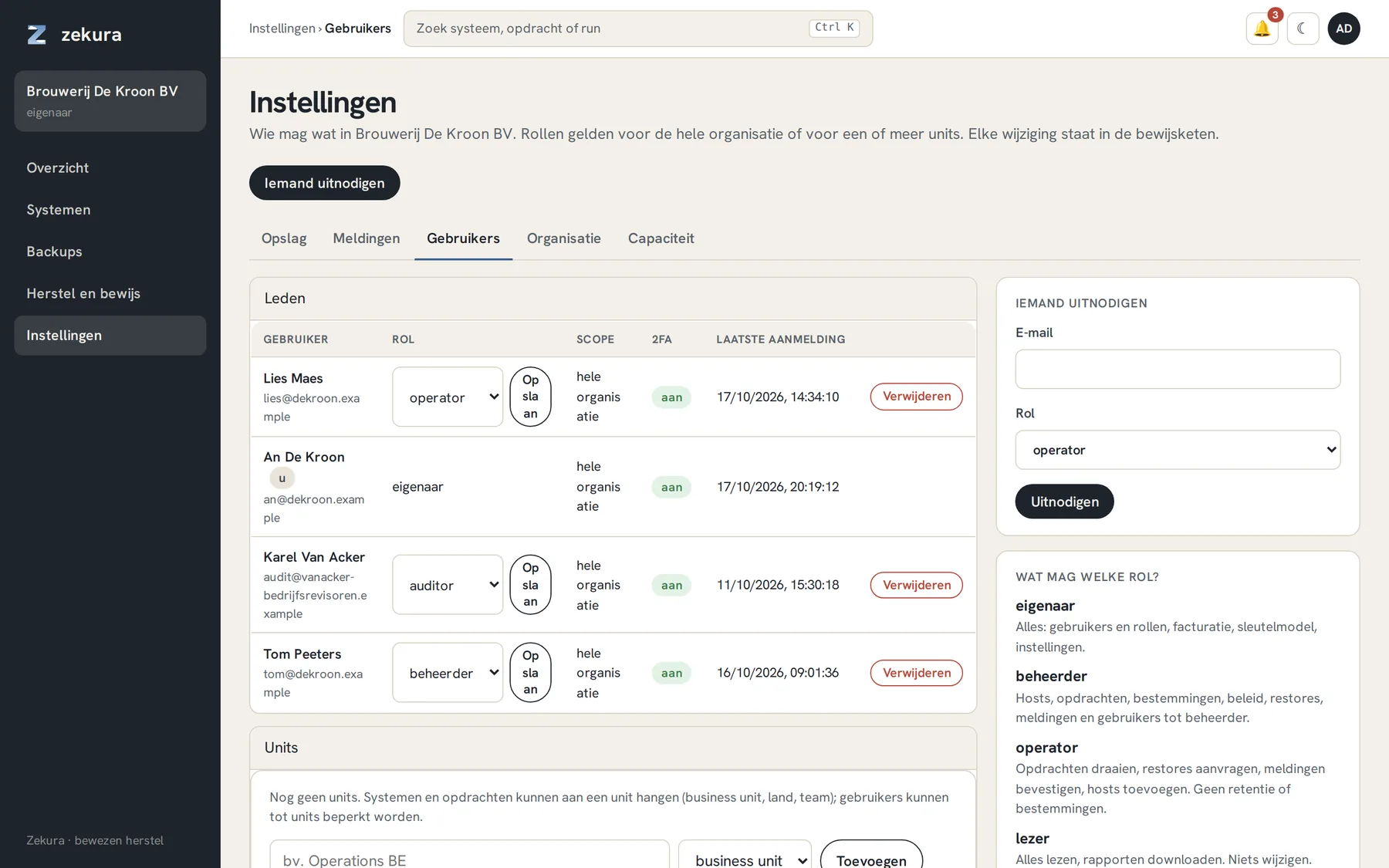
Inviting is done by e-mail. If the address already exists in Zekura, that person gets the role immediately: one account can be a member of several organisations, switching is done via the box at the top left. Nobody can grant a role higher than their own, and there is always at least one owner. Every change is a chain record.
Two-factor authentication
Under Account you enable TOTP with any authenticator app. Recommended for every administrator, mandatory for IT partners. The 2FA column shows who has it on.
Units
Divide large organisations into units: business units, countries, teams. Systems and jobs can belong to a unit, and a user can be limited to units; they then only see the systems, jobs and runs of their units. Units share chain, destinations and keys. If you really want separate chains per division, create separate organisations under one parent.
Organisation
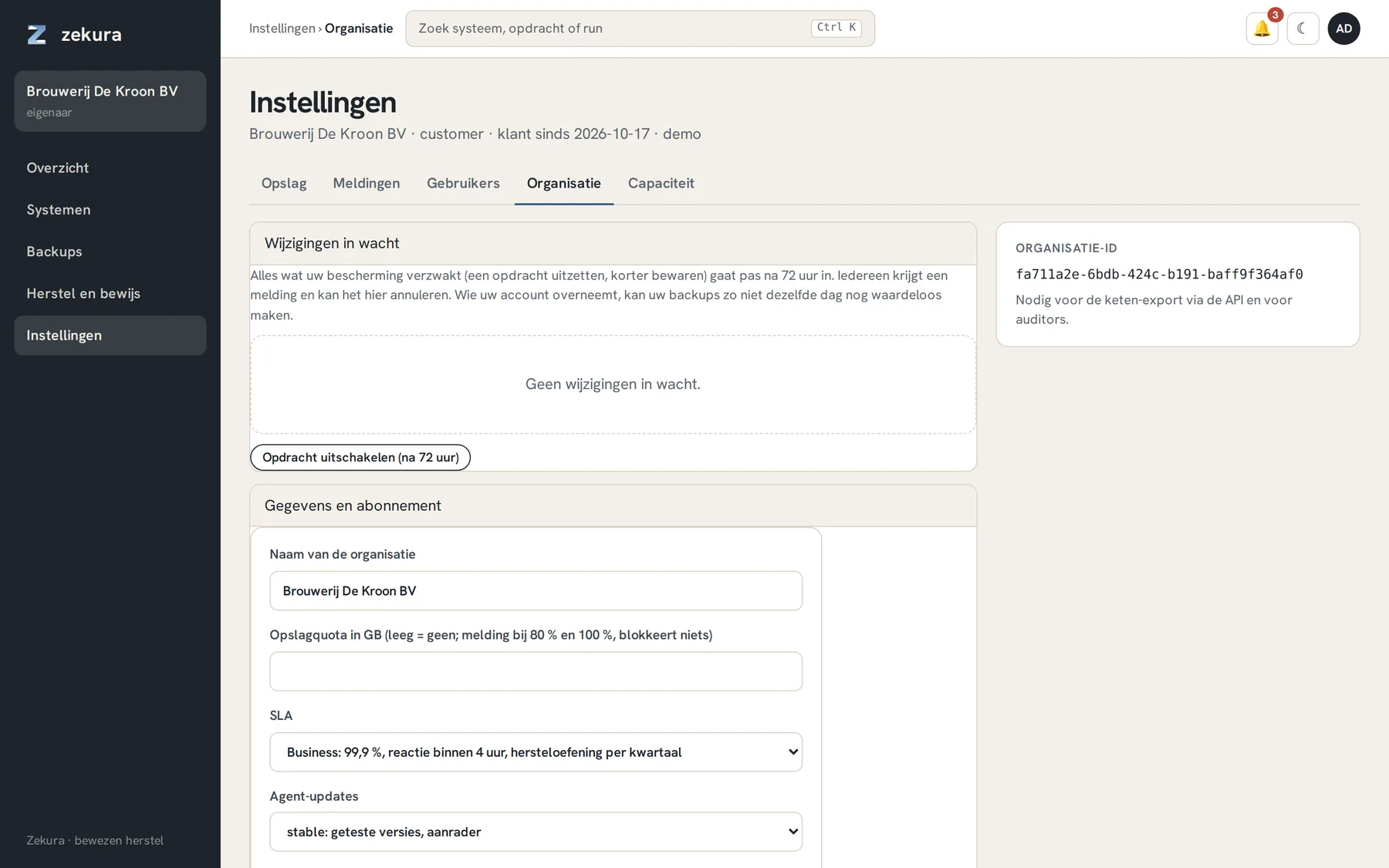
Settings → Organisation shows the pending changes (the 72-hour delay), the name, the storage quota, the SLA, the rollout channel for agent updates (stable or beta) and the organisation id your auditor needs for the chain export.
Capacity
Settings → Capacity shows what is protected (logical), what is physically stored after deduplication and compression, what was sent in the last thirty days, the growth per day, and per destination the physical size and the last maintenance pass.
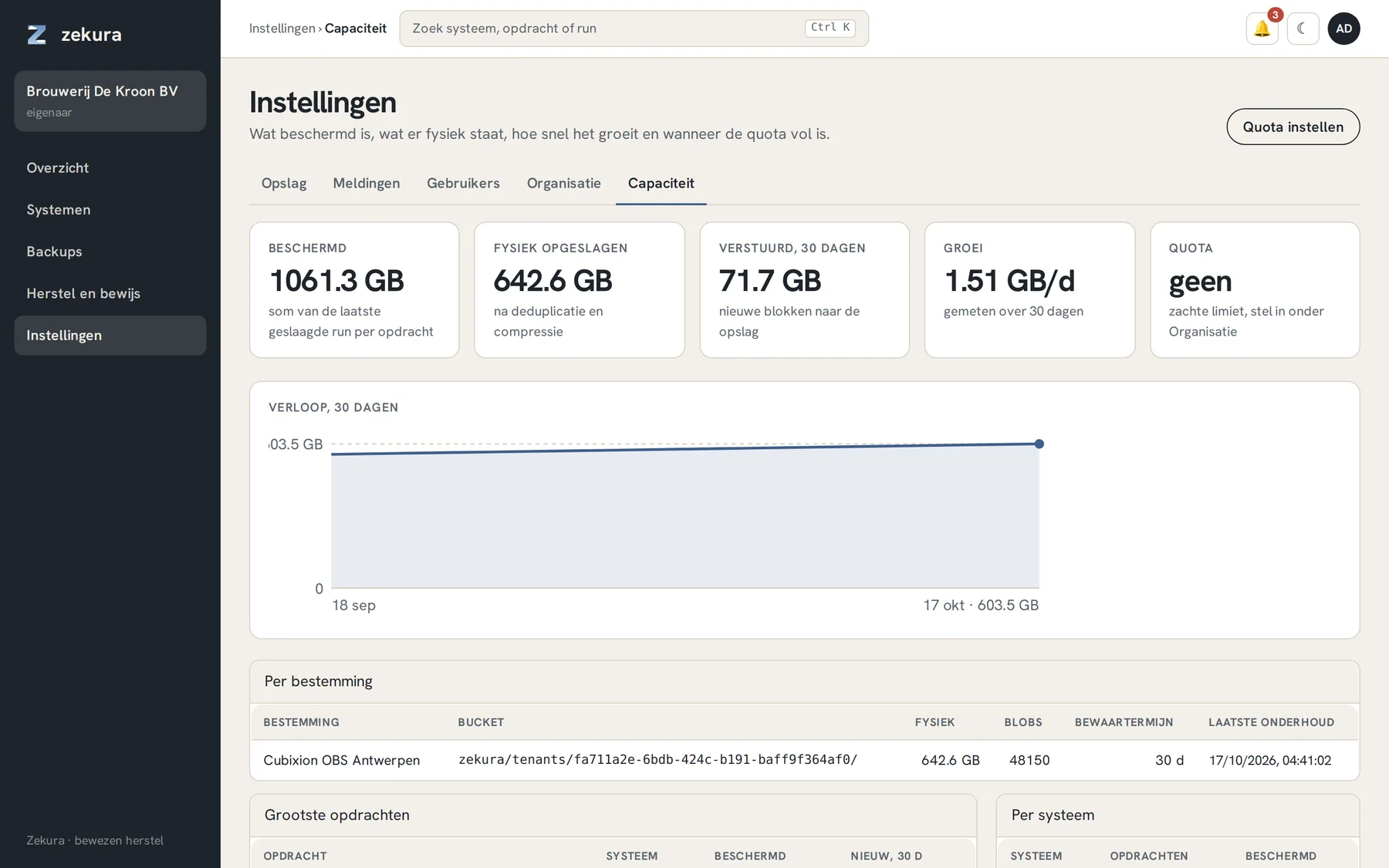
A quota is a soft limit: you get an alert at 80 % and 100 % and an estimate of when it will be full. A quota never blocks a backup.